Player
This is the Player page. Here you can see the following information about the player:
- How to use the player
- Player sections
Once you have the embed code inserted on your website, the player will be displayed automatically.
Note:
The Player wraps and register the video on the dashboard. By default, the sticky player is disabled. You can see the video details on the Video Item page.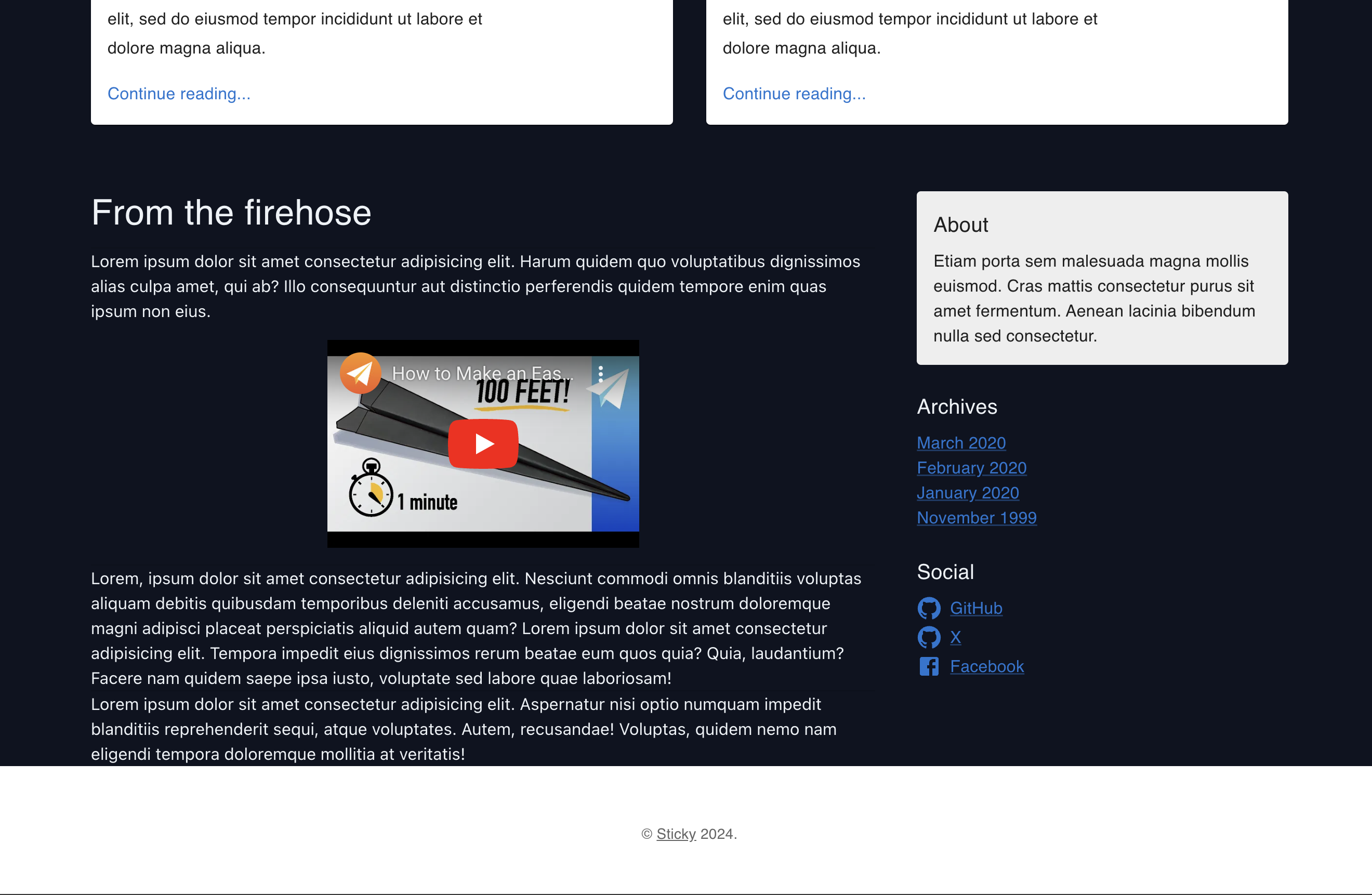
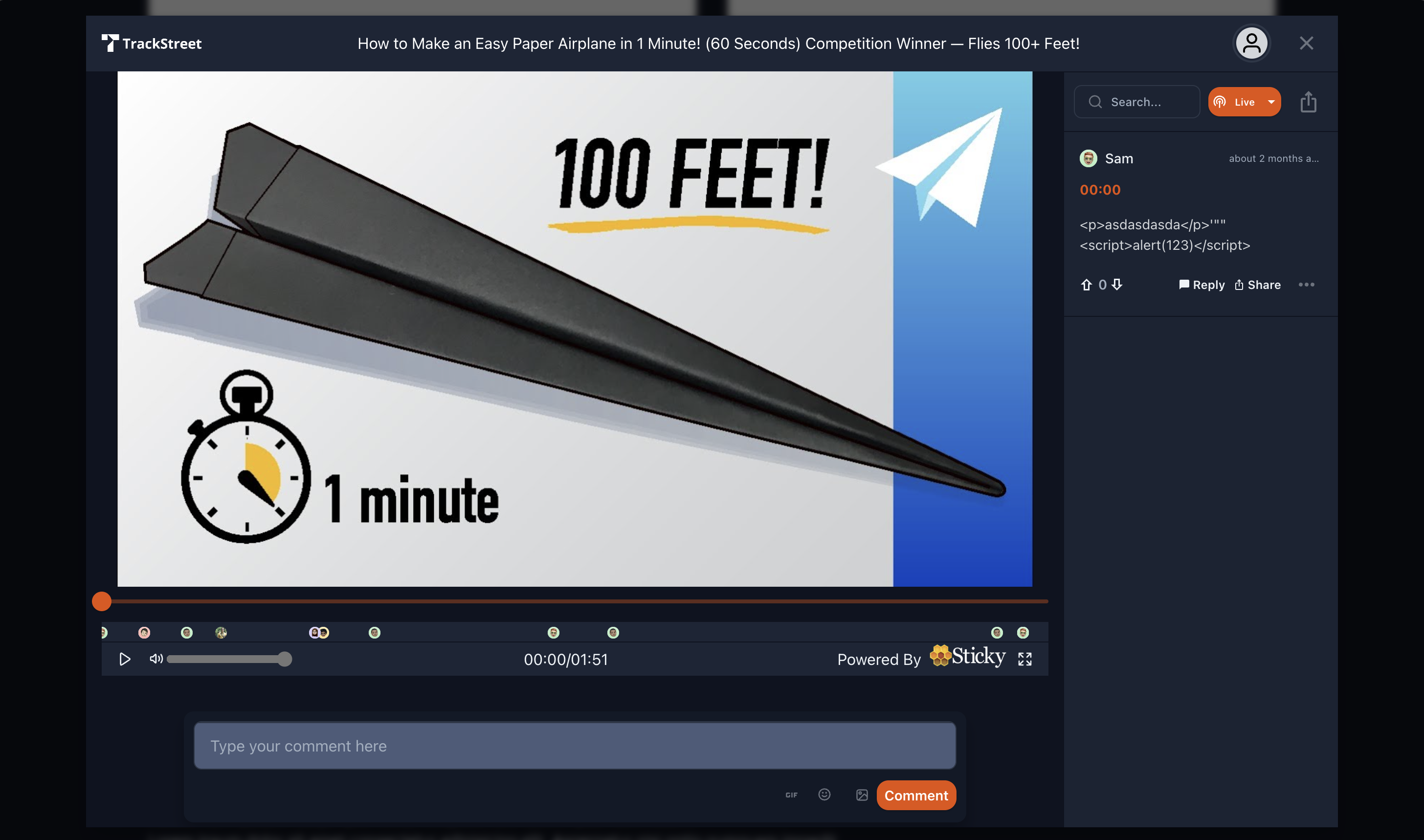
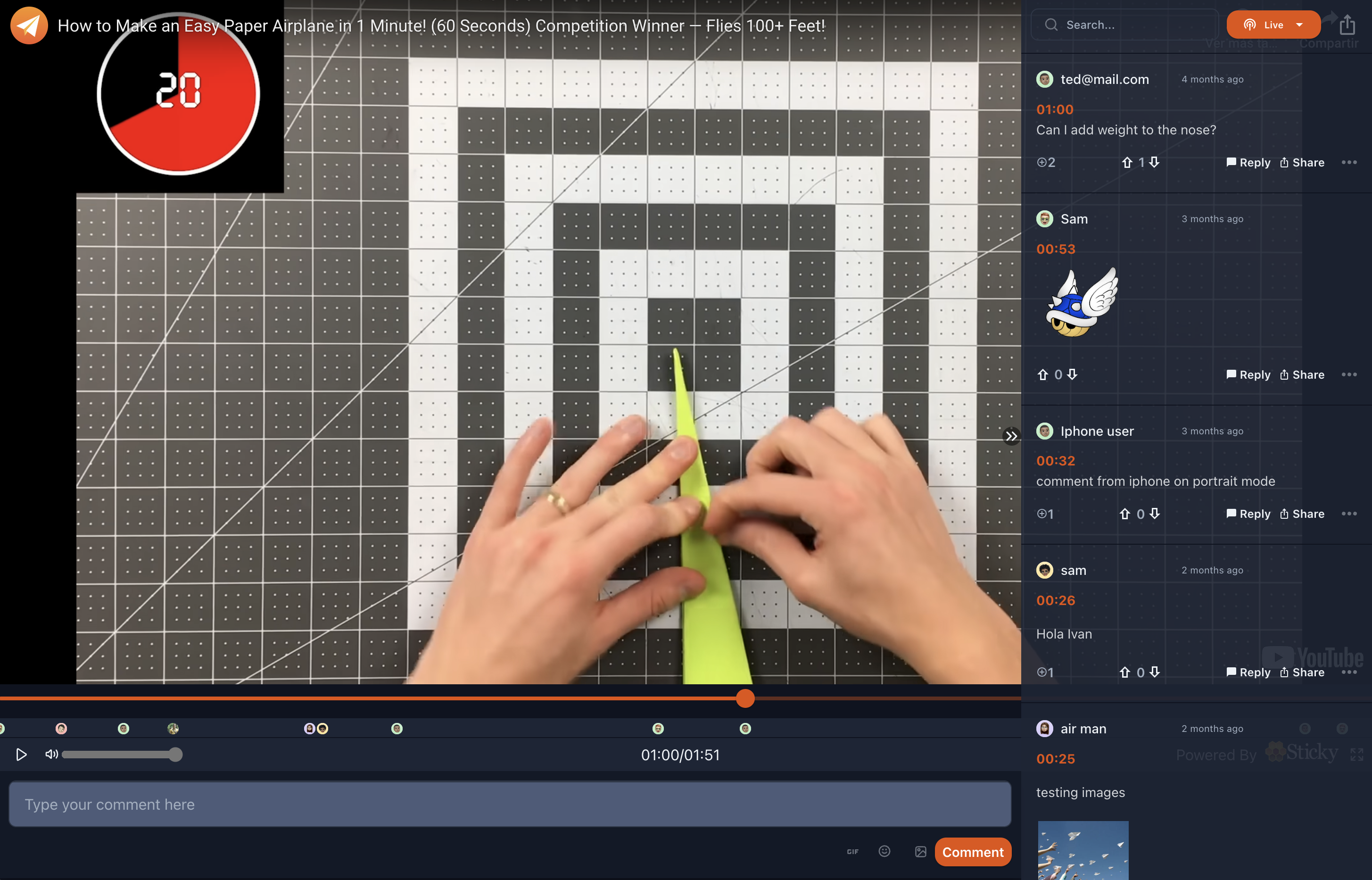
Once its enabled, the player will be displayed when you click to play the video. This is the player with the sticky player enabled.
Normal view:
Full screen view:
Sections
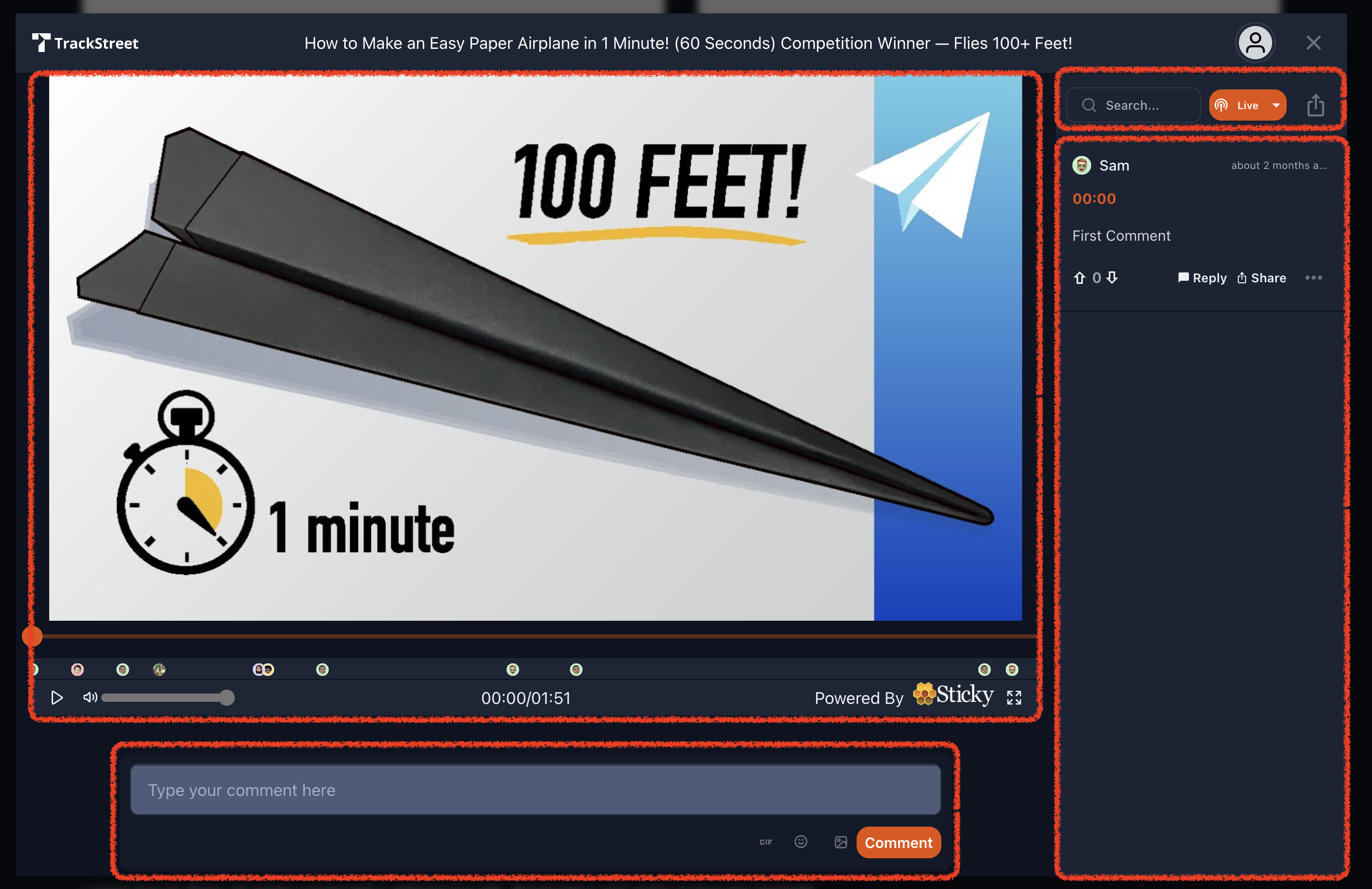
The player has the following sections:
- Player: This is the player section where you can see the video playing.
- Comments: This is the comments section where you can see the comments made on the video.
- Actions: This is the actions section where you can see the actions you can perform on the video.
- Comment Box: This is the comment box where you can make a comment on the video.
Player
This is the player section where you can see the video playing. Contains the video, the timeline, the volume, the fullscreen, and the controls.
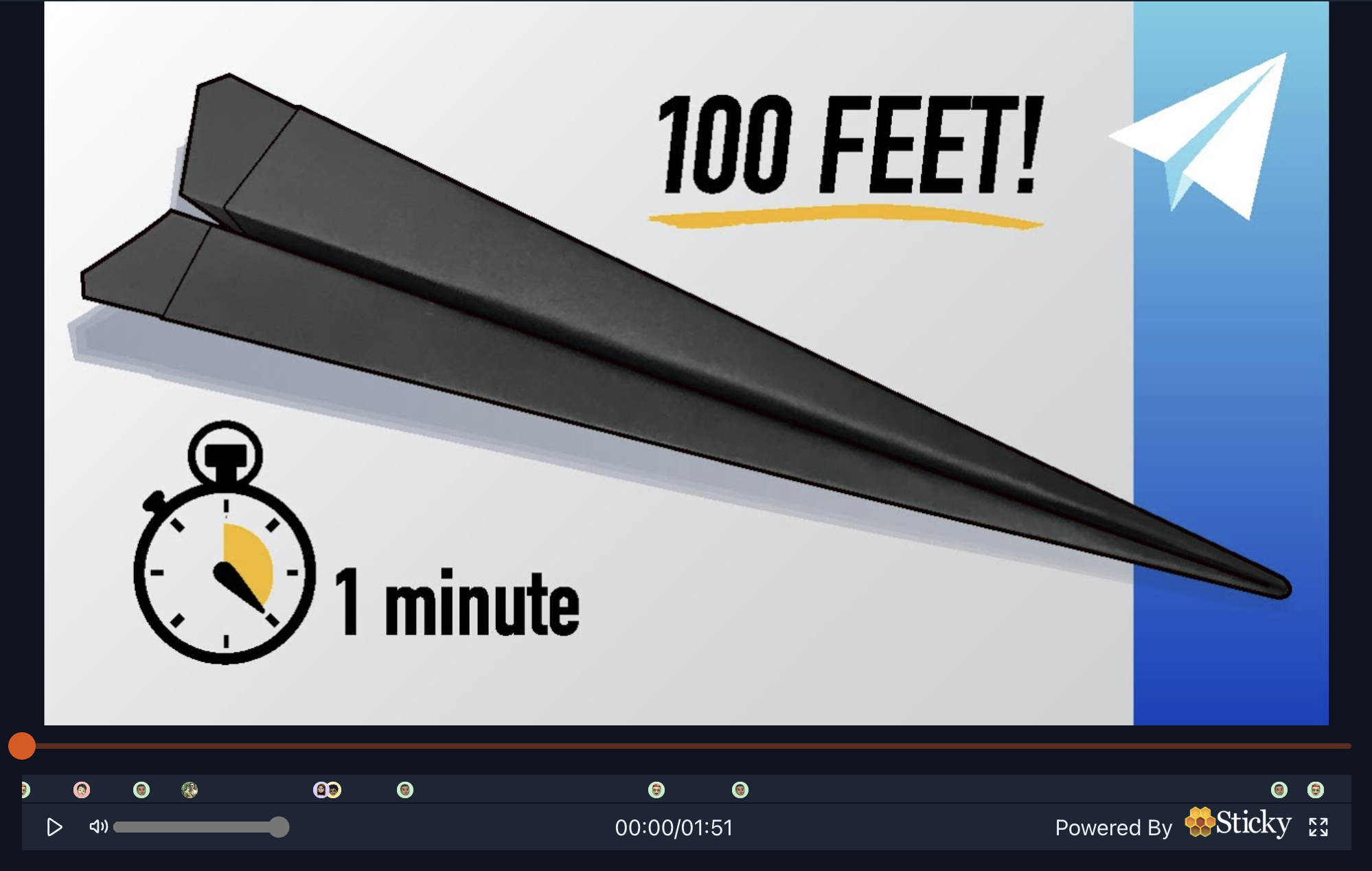
Note:
You can go to the desired time of the video by clicking on the timeline.Comments
This is the comments section where you can see the comments made on the video. You can see the comments made on the video, the user who made it, the date, and the actions you can perform on the comment.
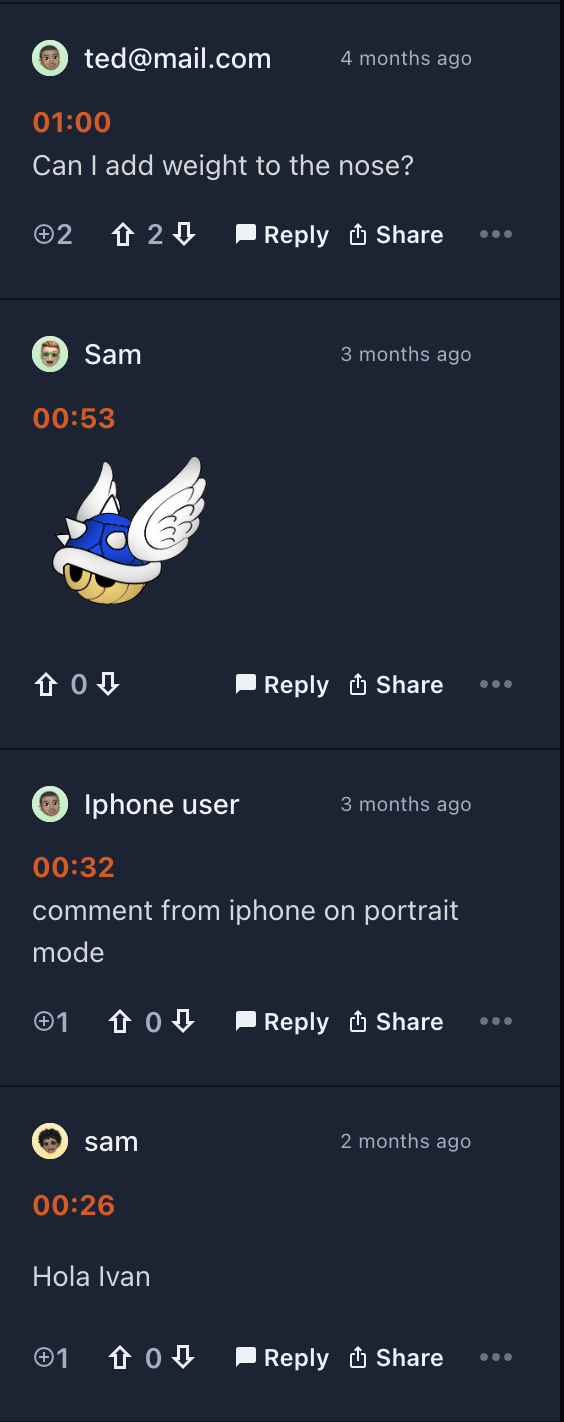
You can vote up or down the comment, share, reply to the comment, or report the comment. Also you be able to see the replies to the comment clicking on the '+' to display the thread.
Actions
This is the actions section where you can see the actions you can perform on the video. You can toggle to see all the comments or show in live mode. Search for a comment, and share the video.

Comment Box
This is the comment box where you can make a comment on the video to interact with the video. You can write a comment, attach a file, an image or gif, and share the comment.

Note:
You can configure the comment box settings on the Settings page. Like enable/disable the quill editor, enable/disable the file upload, and enable/disable the image upload.By default your comment will be posted with your user logged in, but you can post as anonymous if you want.
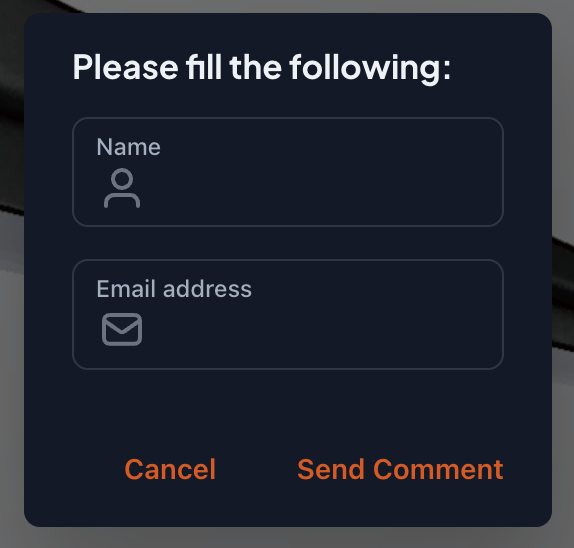
Once you fill the inputs and click on the 'Send comment' button, the comment will be posted on the video.
Note:
The comments will be automatically refreshed every 2 min, or inmediatly if someone post a comment.