Slack
This is the Slack section, in this section you be able to add the Slack integration to your widget.
How to Set Up Slack Integration
-
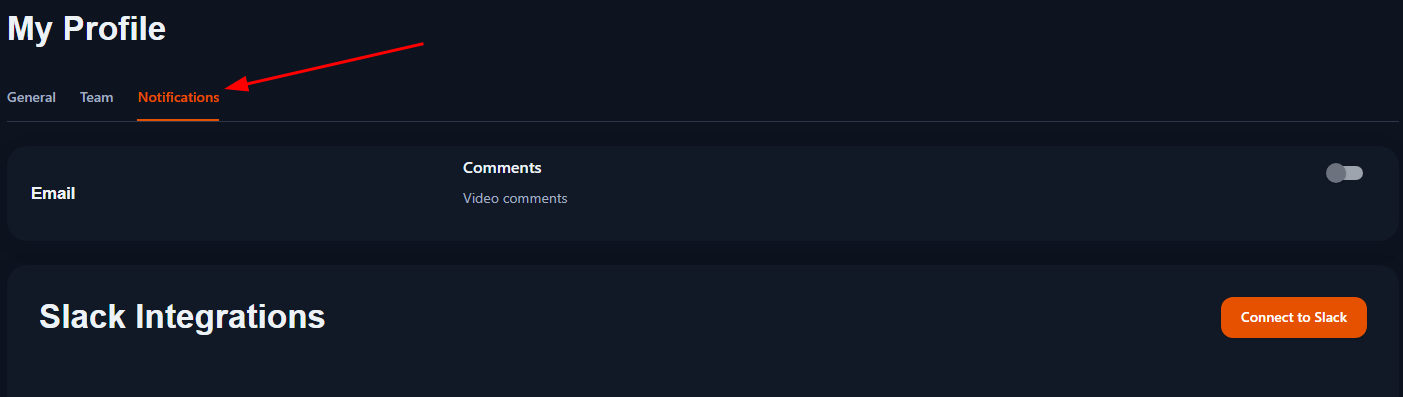
Click on the
Connect to SlackButton- Locate and click the
Add to Slackbutton on your StickyApp dashboard.
- Locate and click the
-
Redirect to Slack Website
- You will be automatically redirected to the Slack website.
-
Log In to Your Slack Account
- If you are not already logged in, enter your Slack credentials to sign in.
-
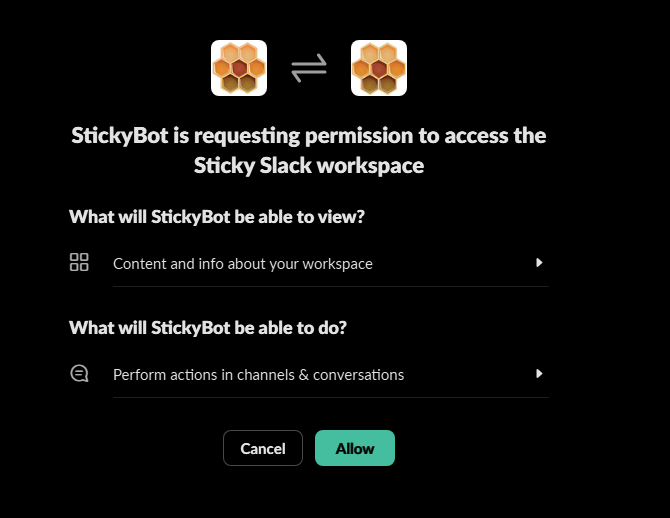
Authorize StickyApp
- Review the permissions requested by StickyApp and click "Authorize" to grant access.
-
Redirect Back to Sticky Dashboard
- After authorizing, you will be redirected back to your StickyApp dashboard.
-
View Slack Integration in Profile
- Navigate to the my profile page where you will see the Slack integration listed.
-
Start Receiving Notifications
- Once the bot is set, you will start receiving notifications.

Note
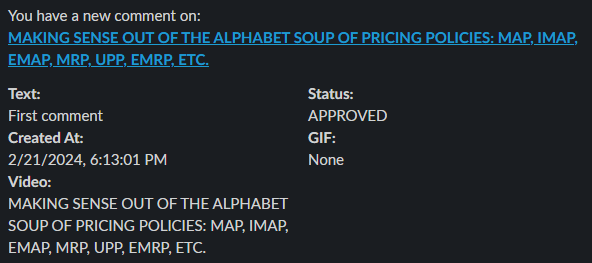
Notifications will include all comment actions such as:
- Approve: When a comment is approved.
- Reject: When a comment is rejected.
- Update Status: When a comment status is updated.
- New Comment: When someone create a new comment.
Refreshing the Token
If you need to refresh your integration token:
- Go to the Slack Integration Settings: Navigate to the profile page where the Slack integration is configured.
- Click
Connecto to Slack: Click theConnecto to Slackbutton to obtain a new token and ensure the integration continues to work seamlessly.
By following these instructions, you ensure that your Slack integration remains active and effective for managing comment notifications.
Home Tab
This is the Home tab, in this tab you will see the notifications that you have received.
You will see the assigned comments, and also the comments with status Pending.
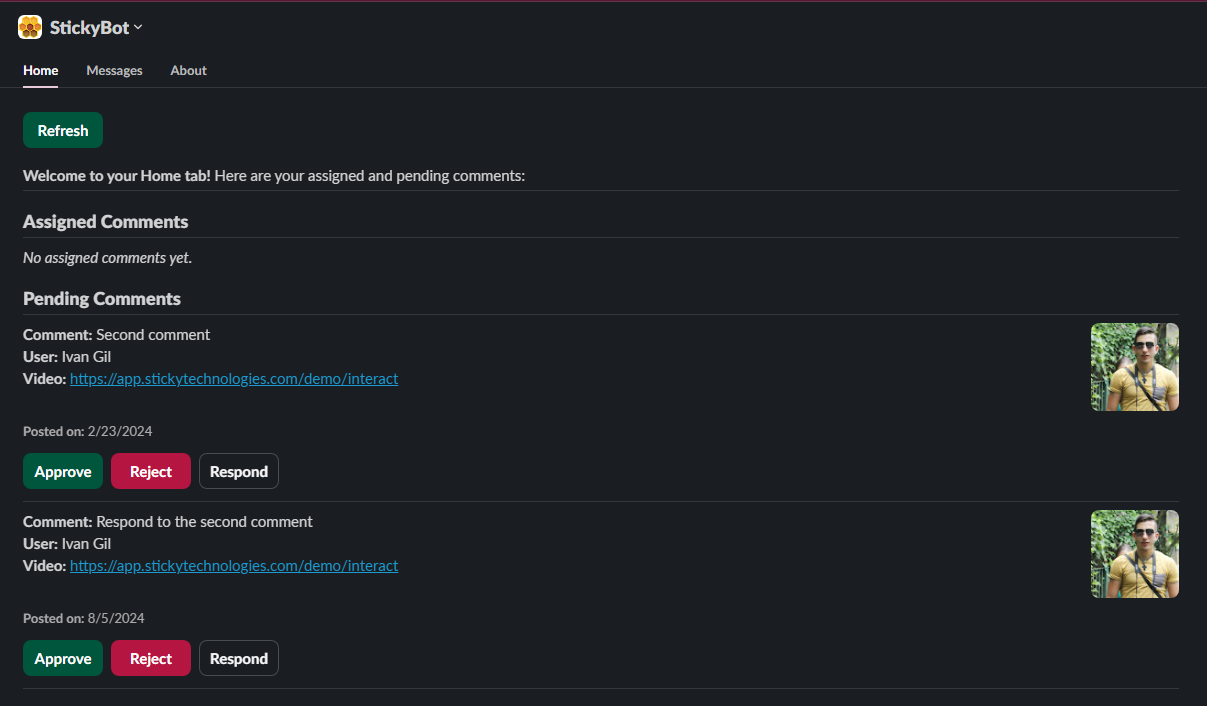
You will be able to approve or reject the comments directly from Slack.
Also you can go to the comment in the StickyApp by clicking on the Name of the video or interact item.
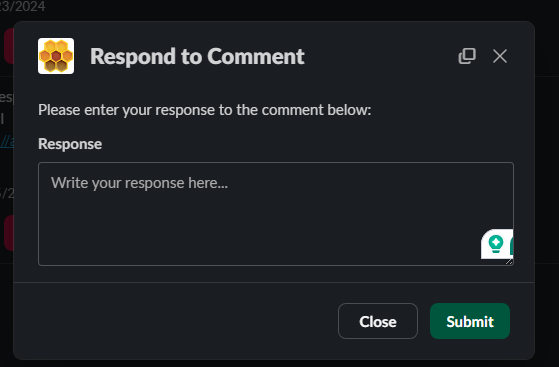
The last action is respond to the comment, you can do this by clicking on the Respond button.
When you click on the Respond button, you will see a modal where you can write your response.
Summary
- Click
Add to Slack. - Redirect to Slack.
- Log in to Slack.
- Authorize StickyApp.
- Redirect back to Sticky dashboard.
- View integration in profile page.
- Start receiving notifications in Slack.
- Start receiving notifications: Alerts will appear in the chosen Slack Bot.